 Meziantou.Framework
Printing pages
editPrinting lays a document out with the print media type and cuts it into pages, as the print preview of a browser does: the @page rules set the size and the margins of the pages, the page breaks start new pages, and the page-margin boxes (@top-center, @bottom-center...) print headers and footers. RenderPages returns one image per page:
using var context = new BrowsingContext(new BrowsingContextOptions { RenderingBackend = new ImagingRenderingBackend() });
context.Navigate("https://example.com/", _ => """
    <!DOCTYPE html>
    <style>
      @page {
        size: 320px 200px;
        margin: 24px 24px 36px;
        @bottom-center { content: "Page " counter(page) " of " counter(pages); font: 11px sans-serif; color: #64748b }
      }
      body { margin: 0; font: 13px/1.4 sans-serif }
      h2 { margin: 0 0 8px; font-size: 18px; color: #1d4ed8 }
      .chapter { break-before: page }
    </style>
    <h2>Introduction</h2>
    <p>Each chapter starts on a new page, and the bottom margin of every page shows its number.</p>
    <div class="chapter">
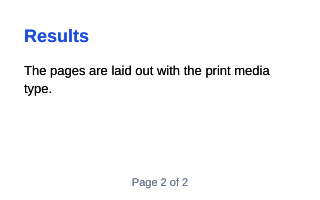
      <h2>Results</h2>
      <p>The pages are laid out with the print media type.</p>
    </div>
    """);
context.EventLoop.RunUntilIdle();

// One image per page: 320x200 pixels each, as set by the @page rule
var pages = context.RenderPages();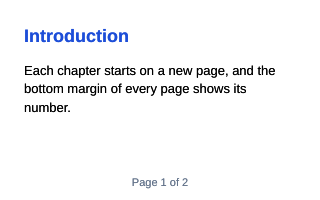
- RenderPages returns Image<Rgba32> images that you own and dispose; RenderPagesAsPng returns PNG files.
- Each page is painted on white paper (ScreenshotOptions.OmitBackground makes it transparent), at the device pixel ratio of the viewport or of ScreenshotOptions.DevicePixelRatio.
- Printing does not change the page on screen: the document is styled and laid out again for the print, and no event is fired.
- An image or a web font used only by the print styles is fetched by the printing, but drawn only once it is loaded: run the event loop, then print again.
- The pages may have different sizes and margins (
@page :first, the named pages,:leftand:right): the content of a page whose page area has another width is laid out again in it, also when the page starts in the middle of a paragraph (its lines continue in the width of the new page).
Print options
PrintOptions has the options of the PDF of Playwright (page.pdf()), for the pages that the @page rules do not size:
| Option | Default | Effect |
|---|---|---|
| PageWidth, PageHeight | US Letter | The size of the pages of size: auto, in CSS pixels (A4 is 794x1123) |
| MarginTop, MarginRight, MarginBottom, MarginLeft | 0.5 in | The margins when no @page rule sets them |
| Landscape | false | Swaps the width and the height of the pages of size: auto |
| Scale | 1 | From 0.1 to 2: the scale of the content |
| PrintBackground | true | Prints the backgrounds; when false, as in a browser, the backgrounds are not printed unless print-color-adjust: exact |
| PreferCssPageSize | true | Uses the size of the @page rules; when false, the pages are printed on the paper of PageWidth x PageHeight |
| PageRanges | all | The pages to print, such as 1-5, 8, 11- |
| DisplayHeaderFooter, HeaderTemplate, FooterTemplate | none | HTML printed in the margins of each page, as in Chromium |
The margins, PrintBackground and PreferCssPageSize have other defaults than page.pdf() of Playwright: set the margins to 0 and the two others to false to print as Playwright does.
The header and footer templates are small documents of their own, as wide as the page: the elements of class date, title, url, pageNumber and totalPages get the date, the title and the URL of the document, the number of the page and the number of pages. Their scripts do not run.
To get a PDF document instead of images, see PDF output.