 Meziantou.Framework
Modifying documents
editStamp the pages of a document
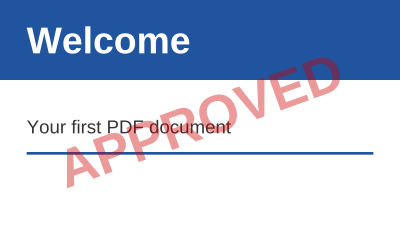
A content builder created for a page of an existing document draws over its content:
public static void StampPages(string inputPath, string outputPath)
{
    var document = PdfDocument.Open(inputPath);
    var font = PdfFont.GetStandardFont(PdfStandardFont.HelveticaBold);
    var translucent = new PdfExtGState { FillAlpha = 0.4 };
    var width = font.GetTextWidth("APPROVED", 40);

    foreach (var page in document.Pages)
    {
        // The new content is painted over the content of the page, from the default graphics state
        var box = page.CropBox;
        page.CreateContentBuilder()
            .SetGraphicsState(translucent)
            .SetFillRgb(0.8, 0, 0)
            .Translate(box.Left + (box.Width / 2), box.Bottom + (box.Height / 2)) // the center of the page
            .Rotate(20)
            .DrawText("APPROVED", font, 40, -width / 2, -14);
    }

    document.Save(outputPath);
}
- The new content is painted after the content of the page, so over it. The existing content, the content of the builders created before included, is wrapped between a save and a restore of the graphics state first, so that the new content starts with the default graphics state, whatever the existing content left. This relies on the content of each builder being balanced: Complete checks that every save of the graphics state, text object and marked-content sequence is closed.
- The fonts and images a builder adds go to the resources of the page: the resources it shares with other pages are copied first, so that the other pages do not change.
- Use the crop box, not the media box, to place content in the visible area. The coordinates of a page whose Rotation is set are those of the page before it is turned.
- Use DisplayToUserSpace to draw on a rotated or cropped page as on an upright page: see Managing pages.
- Add, remove, move, duplicate and import pages with Pages: see Managing pages.
Full and incremental saves
A document read from a file can be saved in two ways:
| Save | Writes | Use it to |
|---|---|---|
| Save, SaveAsync, ToByteArray | A new file with the objects the document uses, renumbered | Get a clean, compact file; remove the objects of deleted pages; change the encryption |
| SaveIncremental, SaveIncrementalAsync | The bytes of the original file, followed by the objects that changed | Keep the original bytes, so that its signatures stay valid; write little for a small change of a large file |
var document = PdfDocument.Open(file);
document.Information.Author = "Reviewer";

using var output = new MemoryStream();
document.SaveIncremental(output);- The incremental update holds the objects that were added or changed: the library notices the changes, whether they are made through the high-level API or the object model.
- It keeps the kind of cross-reference of the original file (a table or a stream). When the file has cross-reference streams, the objects of the update are written in object streams, which makes the update smaller; set UseObjectStreams to
falseto write them one by one. Streams, signature dictionaries and the objects of a generation other than 0 are never in an object stream. - An object removed with
Objects.Removeis written as a free entry of the update: the object no longer exists in the new revision, while the earlier revisions keep it. Its number is not given to a new object. - The private entries of the trailer are kept, by incremental and full saves.
- When nothing changed, the original file is written as it is, without an empty update.
- The original file is copied to the output as it is, without being buffered again.
- It throws
InvalidOperationExceptionfor a document that was not read from a file, or that was repaired (IsRepaired). It cannot change the encryption of the document either: use a full save. - A full save of a document read from an encrypted file keeps its encryption: see Encryption.
To sign a document, use PdfSigner, which appends the signature as an incremental update itself: see Digital signatures.