 Meziantou.Framework
Add a watermark
editA watermark marks an image as yours, or as a draft: a text repeated across the picture, or a logo in a corner. Both are drawn with the canvas of the image, with a color or an opacity that lets the picture show through.
Repeat a text across the image
public static void DrawWatermark(string fontPath, string inputPath, string outputPath)
{
    using var image = Image.Load(inputPath);
    var layout = TextLayout.Create("DRAFT", Font.Load(fontPath), size: image.Width / 6.0);
    var ink = new SolidBrush(new Rgba32(255, 255, 255, 110));
    var center = new PointD(image.Width / 2.0, image.Height / 2.0);

    image.Draw(canvas =>
    {
        // Everything the callback draws is turned around the center of the image: the text is drawn as usual
        canvas.Transform(AffineTransform.CreateRotation(-30, center), turned =>
        {
            for (var row = -1; row <= 1; row++)
            {
                var middle = new PointD(center.X, center.Y + (row * layout.Height * 1.5));
                turned.FillText(ink, layout, layout.GetOrigin(middle, TextHorizontalAnchor.Center, TextVerticalAnchor.Center));
            }
        });
    });

    image.Save(outputPath);
}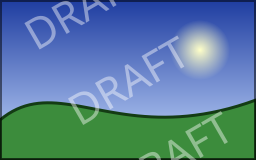
- TextLayout.Create shapes the text once, with the font and the size; the example sizes it from the width of the image, so the watermark keeps its proportions on images of any size. Fonts are loaded from files: see Fonts.
- The alpha of the brush (110 out of 255) makes the text translucent.
canvas.Transformturns everything that its callback draws, here by 30 degrees around the center of the image. See Transformations.layout.GetOriginplaces the text by its center instead of its top-left corner. See Drawing text.
Draw a logo in a corner
public static void AddLogoWatermark(string inputPath, string logoPath, string outputPath)
{
    using var image = Image.Load(inputPath);
    using var logo = Image.Load(logoPath);

    // The logo takes at most a quarter of the width and of the height of the image, whatever their sizes
    logo.Resize(new ResizeOptions(image.Width / 4, image.Height / 4) { AllowUpscaling = false });

    // At a position on whole pixels, the pixels of the logo are drawn as they are, faded by the opacity
    var margin = image.Width / 40;
    var position = new PointD(image.Width - logo.Width - margin, image.Height - logo.Height - margin);

    // Draw paints every frame of an animation identically
    image.Draw(canvas => canvas.DrawImage(logo.Frames[0], position, opacity: 0.6));
    image.Save(outputPath);
}
- The logo is resized to the image, so that it covers the same part of a small and of a large picture. Use a logo with a transparent background, such as a PNG file: its transparent pixels stay transparent.
- DrawImage draws a frame of another image at a position, and its
opacity(from 0 to 1) fades it. At a position on whole pixels, the pixels of the logo are not interpolated. Other overloads stretch the image to a rectangle, draw a part of it, or place it with a transformation. - The logo is drawn as it is stored: no color profile is applied. Convert the logo and the image to the same color space first when they have different profiles (see Color management).
- An image that is not yet upright (a photo with an EXIF orientation) gets the logo in the wrong corner: call AutoOrient before drawing.
Watermark an animation
Image.Draw draws on every frame of the image, so both examples work on animated GIF, APNG and WebP files: the watermark is painted identically on each frame, and the durations and the loop count are kept. The output format must store animations. See Drawing on animations.
Make the watermark harder to remove
A watermark in a corner is easy to crop. A text repeated across the whole image, or a logo drawn in the middle with a low opacity, is harder to remove. Publish the watermarked copy only, never the original file next to it.