 Meziantou.Framework
Images
editMeziantou.Framework.Imaging.Barcodes renders codes with Meziantou.Framework.Imaging: save them in any format the library writes, draw them on existing images, and paint them with gradients or patterns.
dotnet package add Meziantou.Framework.Imaging.BarcodesThe types are in the Meziantou.Framework.Imaging.Barcodes namespace. The examples also use the Meziantou.Framework.Barcodes, Meziantou.Framework.Imaging, Meziantou.Framework.Imaging.Drawing and Meziantou.Framework.Imaging.Formats namespaces.
Render a code as an image
ToImage renders a QR code or a barcode on a new Image<Rgba32> of its size, quiet zone included:
var qrCode = QRCode.Create("https://www.meziantou.net", ErrorCorrectionLevel.M);

// Default options: 10 pixels per module, a 4-module quiet zone, black on white
using var image = qrCode.ToImage();
Assert.Equal((330, 330), (image.Width, image.Height));

// Save to a file (image.Save("qrcode.webp", new WebPEncoder())) or to a stream
using var webp = new MemoryStream();
image.Save(webp, new WebPEncoder());

// Custom options, the same as the canvas drawing takes: any brush, and no background
using var customImage = qrCode.ToImage(new QRCodeDrawingOptions
{
    ModuleSize = 4,
    QuietZoneModules = 2,
    DarkBrush = new SolidBrush(new Rgba32(0x00, 0x33, 0x66)),
    LightBrush = null,
});
Assert.Equal((116, 116), (customImage.Width, customImage.Height));
Assert.Equal(Colors.Transparent, customImage.Frames[0][0, 0]);
Assert.Equal(new Rgba32(0x00, 0x33, 0x66), customImage.Frames[0][8, 8]);

// An indexed PNG stores the two colors in a palette, as ToPng does
using var png = new MemoryStream();
customImage.Save(png, new PngEncoder { PixelLayout = PngPixelLayout.Indexed });
var barcode = Barcode.CreateEan13("5901234123457");
using var image = barcode.ToImage(new BarcodeDrawingOptions { ModuleWidth = 3, ModuleHeight = 100 });
Assert.Equal((345, 100), (image.Width, image.Height));Save the image like any other: see Saving images.
Paint with any brush
The modules are painted with brushes, so a code can have a gradient, a pattern or an image. The brushes are in the coordinates of the image:
var qrCode = QRCode.Create("https://www.meziantou.net", ErrorCorrectionLevel.Q);

// The brushes are in the coordinates of the image: the gradient goes across the whole symbol
var options = new QRCodeDrawingOptions
{
    ModuleSize = 5,
    QuietZoneModules = 2,
    DarkBrush = new LinearGradientBrush(new PointD(0, 0), new PointD(165, 165), [new GradientStop(0, new Rgba32(0x7c, 0x3a, 0xed)), new GradientStop(1, new Rgba32(0x0e, 0x74, 0x90))]),
};

using var image = qrCode.ToImage(options);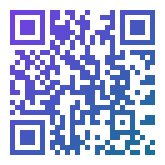
Keep the modules dark and the background light everywhere: a gradient that gets too light loses the contrast scanners need. See Brushes and pens for the brushes.
Draw on an existing image
DrawQRCode and DrawBarcode draw on the canvas of Image.Draw, as vector shapes: the transform, the clip and the layers of the canvas apply. MeasureQRCode and MeasureBarcode give the size of the drawing first, to place it:
using var ticket = new Image<Rgba32>(400, 200, Colors.White); // or Image.Load<Rgba32>("ticket.png")
var qrCode = QRCode.Create("TICKET-0042");
var options = new QRCodeDrawingOptions { ModuleSize = 4, QuietZoneModules = 2 };

// The size of the drawing, quiet zone included, to lay out the page before drawing
var size = QRCodeImageRenderer.MeasureQRCode(qrCode, options);
Assert.Equal((100, 100), (size.Width, size.Height)); // (21 modules + 2 x 2) x 4 pixels

// Drawn as a vector shape: the transform and the clip of the canvas apply, any brush works
ticket.Draw(canvas => canvas.DrawQRCode(qrCode, new PointD(400 - 16 - size.Width, 16), options));
Assert.Equal(Colors.Black, ticket.Frames[0][284 + 8, 16 + 8]); // the top-left finder pattern, after the 8-pixel quiet zone

// Save to a file (ticket.Save("ticket-with-qrcode.png")) or to a stream
using var png = new MemoryStream();
ticket.Save(png, new PngEncoder());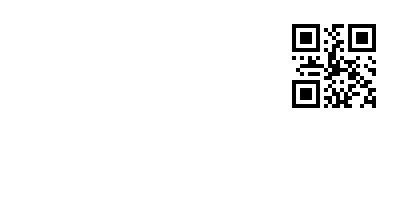
With SnapToPixels (the default), the module sizes and the position are rounded to whole pixels, so that every module has the same size and sharp edges. Turn it off to draw a code at an exact fractional size, for instance under a scale transform.
Print the text under a barcode
DrawBarcode prints the human-readable text of the barcode (Barcode.Text, with its check digit) under the bars when BarcodeDrawingOptions.Font is set:
var barcode = Barcode.CreateEan13("590123412345");
var options = new BarcodeDrawingOptions
{
    ModuleWidth = 2,
    ModuleHeight = 60,
    QuietZoneModules = 9,
    DarkBrush = new SolidBrush(new Rgba32(0x00, 0x33, 0x66)),
    Font = BarcodeFonts.OcrB, // prints barcode.Text, "5901234123457", under the bars
    FontSize = 24,
};

var size = BarcodeImageRenderer.MeasureBarcode(barcode, options);
Assert.Equal(226, size.Width); // (95 modules + 2 x 9) x 2 pixels

using var label = new Image<Rgba32>(300, 140, Colors.White);
label.Draw(canvas => canvas.DrawBarcode(barcode, new PointD(20, 20), options));
Assert.Equal(new Rgba32(0x00, 0x33, 0x66), label.Frames[0][20 + 18, 50]); // the first guard bar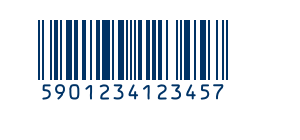
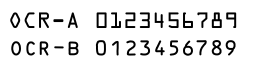
BarcodeFonts has the two fonts of optical character recognition usually printed under barcodes: OcrB under EAN and UPC barcodes, and OcrA. They are Fonts of Meziantou.Framework.Imaging, so you can also draw any text with them:
using var image = new Image<Rgba32>(280, 72, Colors.White);
image.Draw(canvas =>
{
    var ink = new SolidBrush(Colors.Black);
    canvas.FillText(ink, "OCR-A 0123456789", BarcodeFonts.OcrA, size: 24, new PointD(8, 6));
    canvas.FillText(ink, "OCR-B 0123456789", BarcodeFonts.OcrB, size: 24, new PointD(8, 38));
});
- Both fonts are generated from the character shapes of their standards (ANSI X3.17-1981 for OCR-A, ANSI X3.49-1975 for OCR-B), are monospaced, map the printable ASCII characters, and are licensed with the package.
- OCR-A also has the Hook, the Chair and the Fork (U+2440 to U+2442), which stand for the tilde, the grave accent and the underline. OCR-B also has the letters of its extended repertoire (Ä, Å, Æ, Ö, Ø, Ü, Ñ, IJ, å, æ, ø, ij, ß) and §, ¤, £, ¥, ¨ and ´.
- Any other font works too: see Fonts.
Options
ToImage and the canvas drawing take the same options. The sizes are in units of the canvas: pixels, unless a transform applies.
| QRCodeDrawingOptions | Default | Description |
|---|---|---|
| ModuleSize | 10 | The size of a module |
| QuietZoneModules | 4 | The width of the margin around the code, in modules |
| DarkBrush | Black | The brush of the dark modules |
| LightBrush | White | The brush of the light modules and of the margin; null keeps the background (transparent for ToImage) |
| SnapToPixels | true | Round the module size and the position to whole units |
| BarcodeDrawingOptions | Default | Description |
|---|---|---|
| ModuleWidth | 2 | The width of a module |
| ModuleHeight | 80 | The height of the bars |
| QuietZoneModules | 10 | The width of the margins on the left and on the right, in modules |
| DarkBrush | Black | The brush of the bars |
| LightBrush | White | The brush of the spaces, of the margins and of the background of the text; null keeps the background |
| SnapToPixels | true | Round the module sizes and the position to whole units |
| Font | null | The font of the text under the bars; null draws no text |
| FontSize | 14 | The size of the text |
| TextBrush | null | The brush of the text; null uses DarkBrush |
| TextSpacing | 2 | The space between the bars and the text |